With the change in UI for Business Rules in Dynamics 365, which was supposed to be a simpler UI and visually appealing seems to lag intuitiveness as it takes couple to tries to understand how to work with it.
- In given example I am having an entity for Absence Calendar for users.
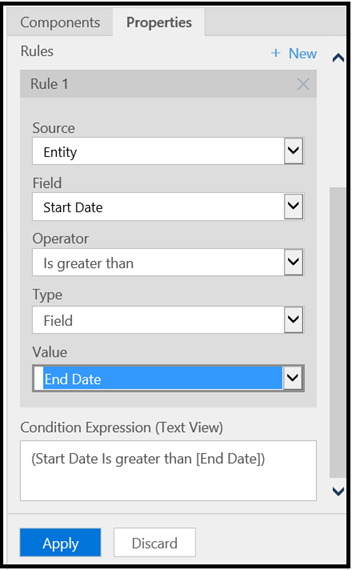
- I have start date and end date for users. Validation is that End Date should be >= start date.
- Go to your solution -> expand the entity -> click on business rules -> click new

-
Key in the Business Rule Name

-
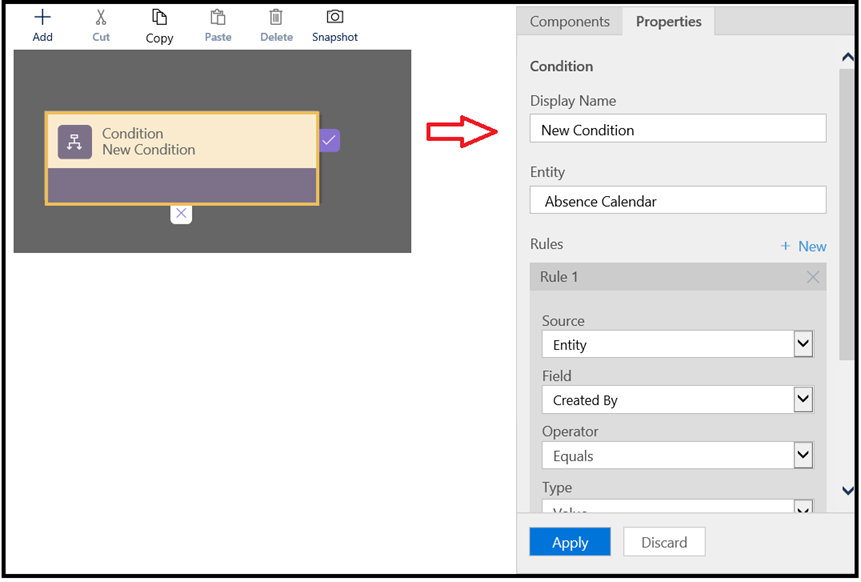
Click on Condition Box and on right side under properties you will see UI to update condition.
-
Update the rule condition and click apply.
-
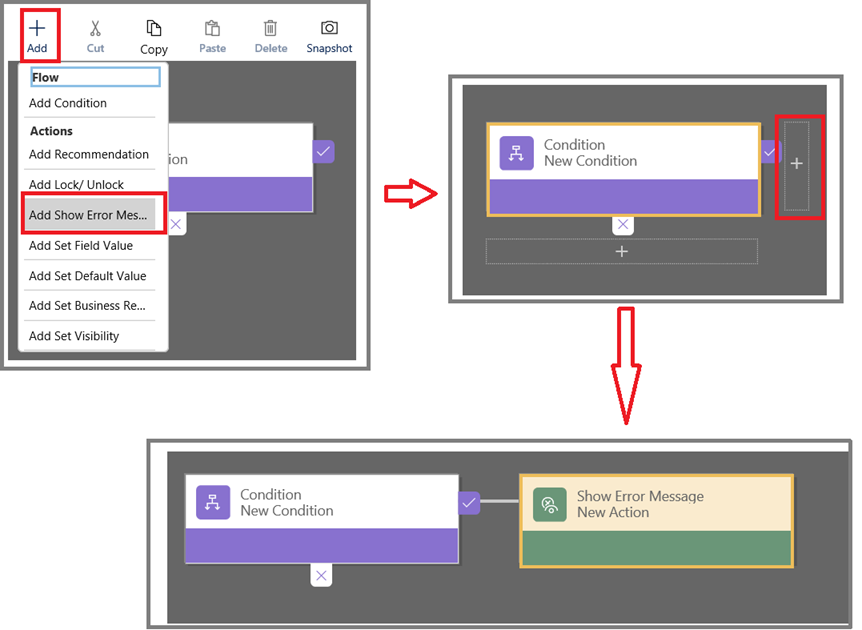
Click on Add -> Add Show Error Message. It will display plus sign near condition success and failure. Click on the + sign near positive condition
-
On right hand select the field where the error message should display. Key in the error message and click apply.

- Now Save -> Activate the Business Rule.
 Tech, Design and Development
Leave a comment